Importing Lists
Ingude can import lists from the tools you already use. Whether you have a JSON export sitting on your phone, a New Recruit tournament URL, or a link shared by a teammate, there is a fast path to get it into your library.
Supported Formats
Ingude auto-detects which format you are pasting and labels it in the UI:
| Format | Where it comes from | Label shown |
|---|---|---|
| New Recruit JSON | .json export from the New Recruit app | New Recruit JSON |
| New Recruit text | Copy-pasted from a New Recruit army page | New Recruit text |
| New Recruit short | Compact clipboard format from some NR views | New Recruit (short) |
| Old World Builder | Text export from the OWB web builder | Old World Builder |
| Tabletop Forge share link | A link generated by another Ingude user | (handled separately - see Shared Links) |
Detection is automatic - you never need to tell Ingude what you are pasting.
Method 1 - Paste or Drop a File
This is the most common path. Use it whenever you have the list text or a .json file.
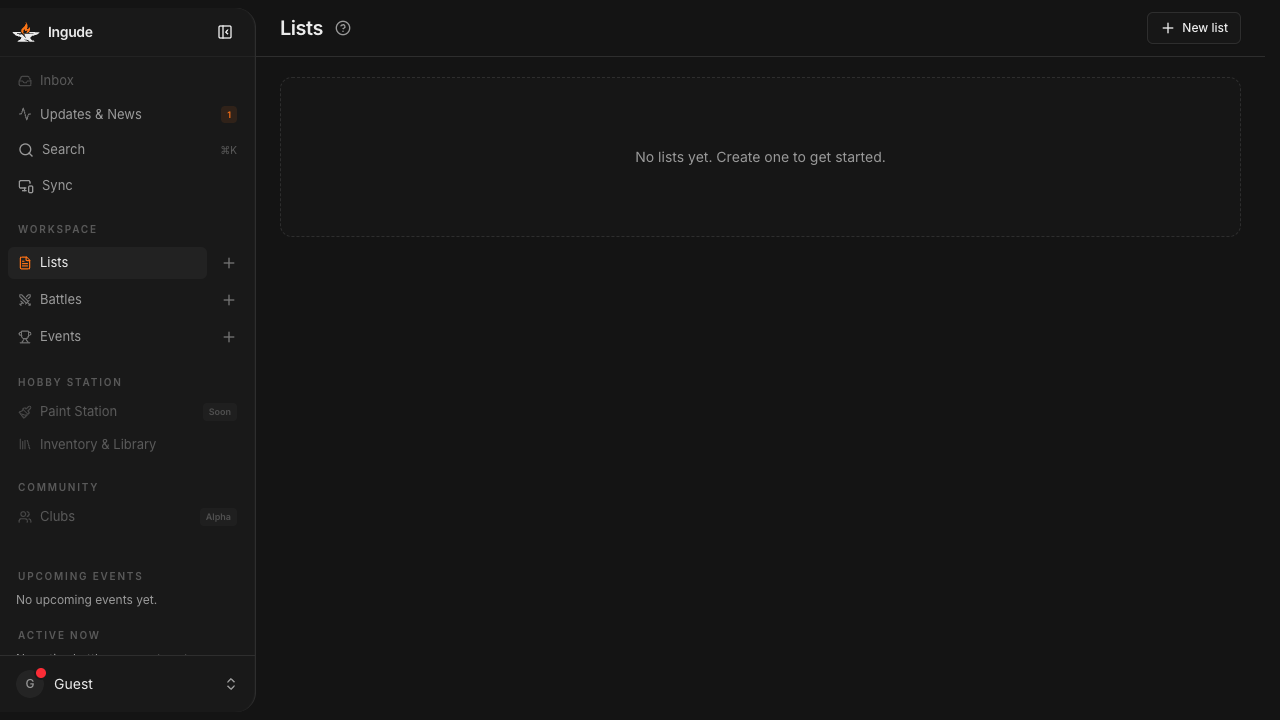
Step 1 - Open the Import dialog
Go to the Lists section and tap the Import button.
Step 2 - Drop a file or paste text
The dialog gives you two options side by side:
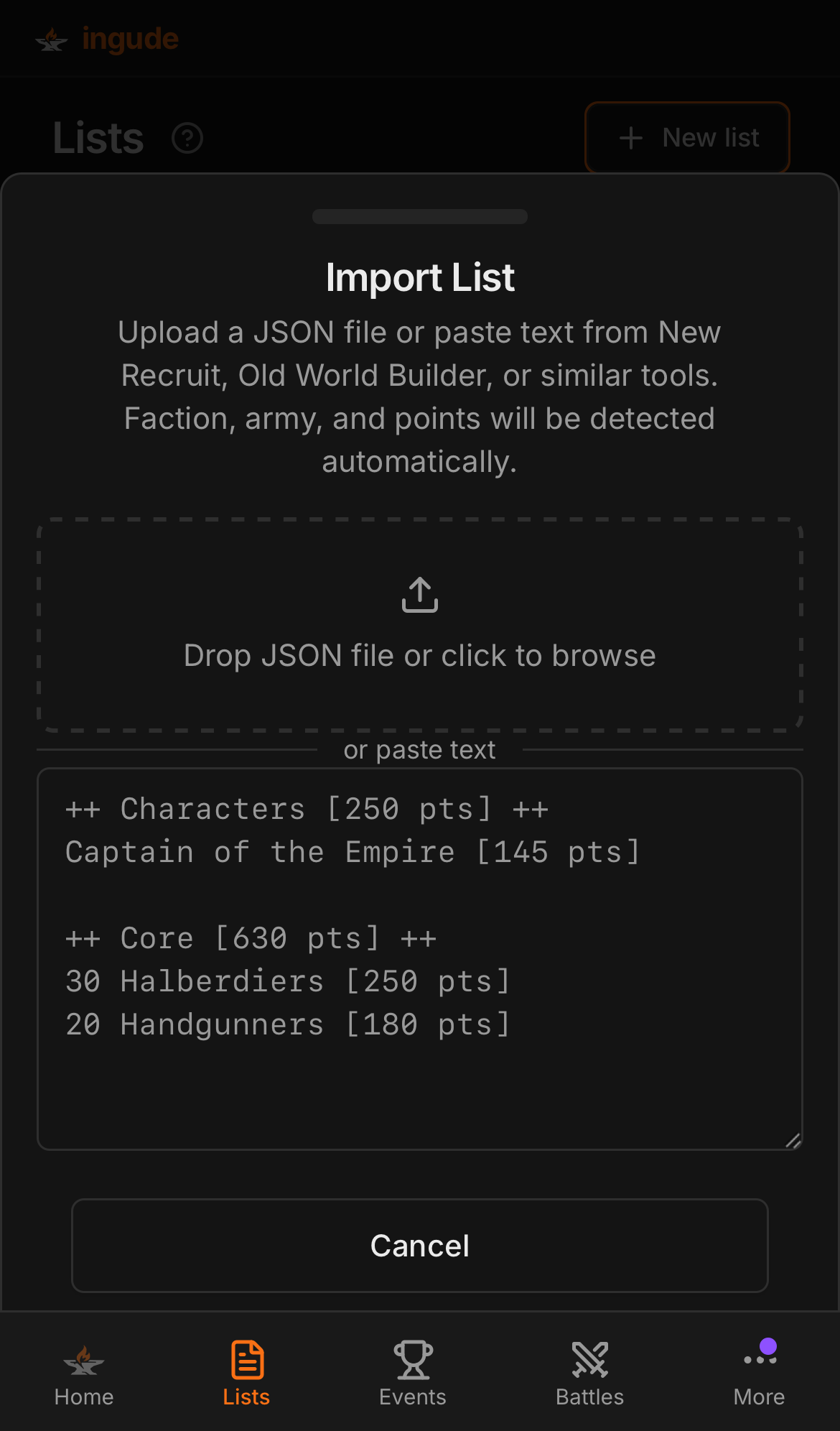
- Drag and drop a
.jsonfile onto the dashed drop zone (or click it to open a file picker). - Paste the list text directly into the text area below.
Both work on desktop and mobile. On mobile the drop zone becomes a tap-to-pick-file button.
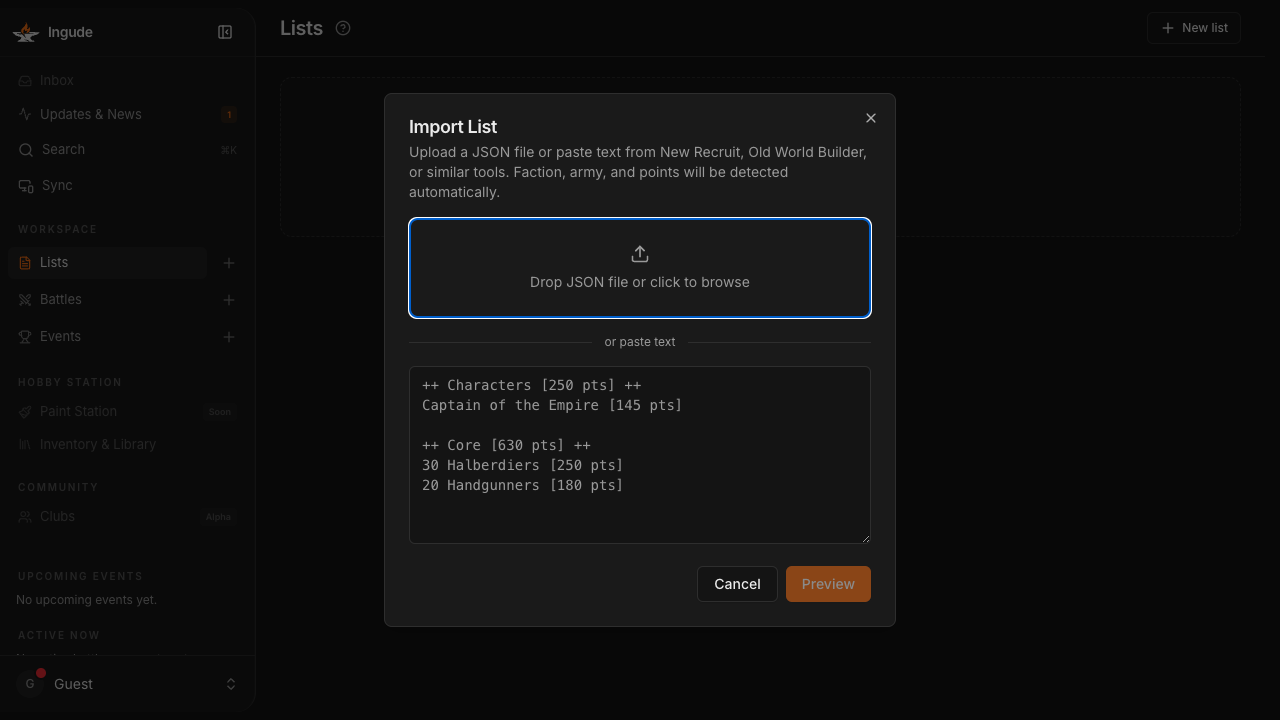
As soon as you paste text, Ingude detects the format and shows a small badge below the text area.
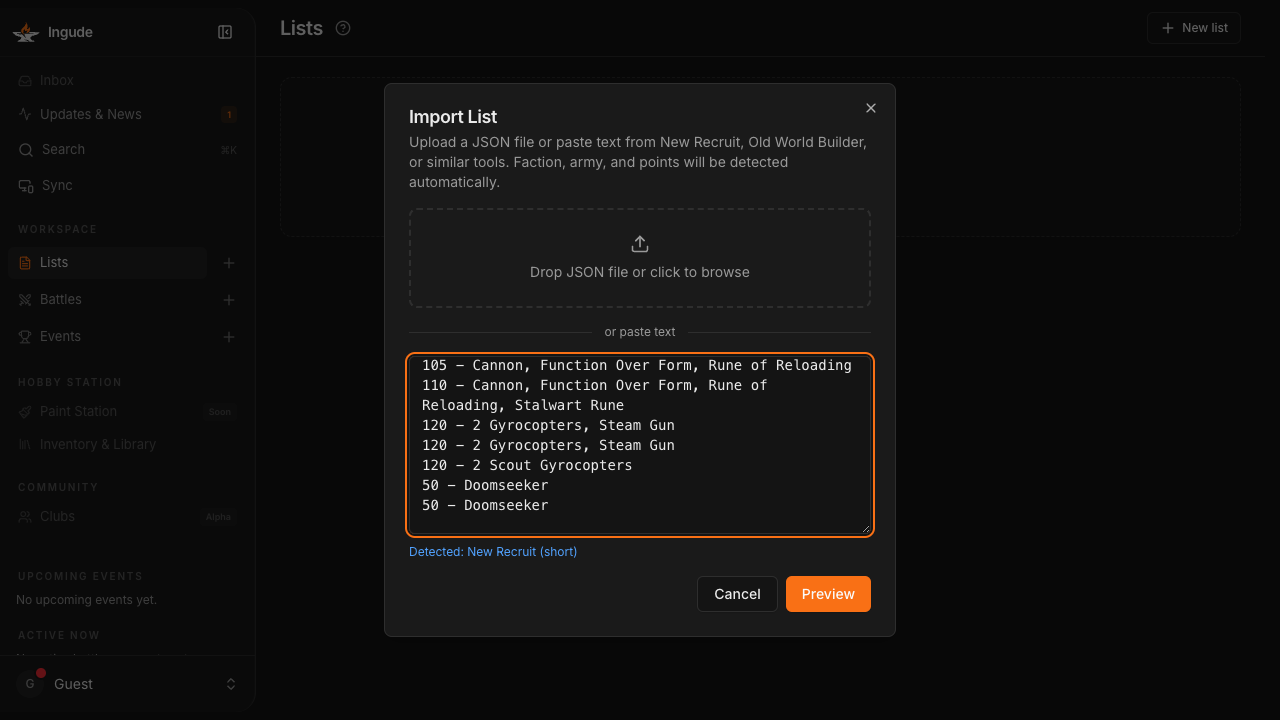
Hit Preview to continue.
Step 3 - Review the preview
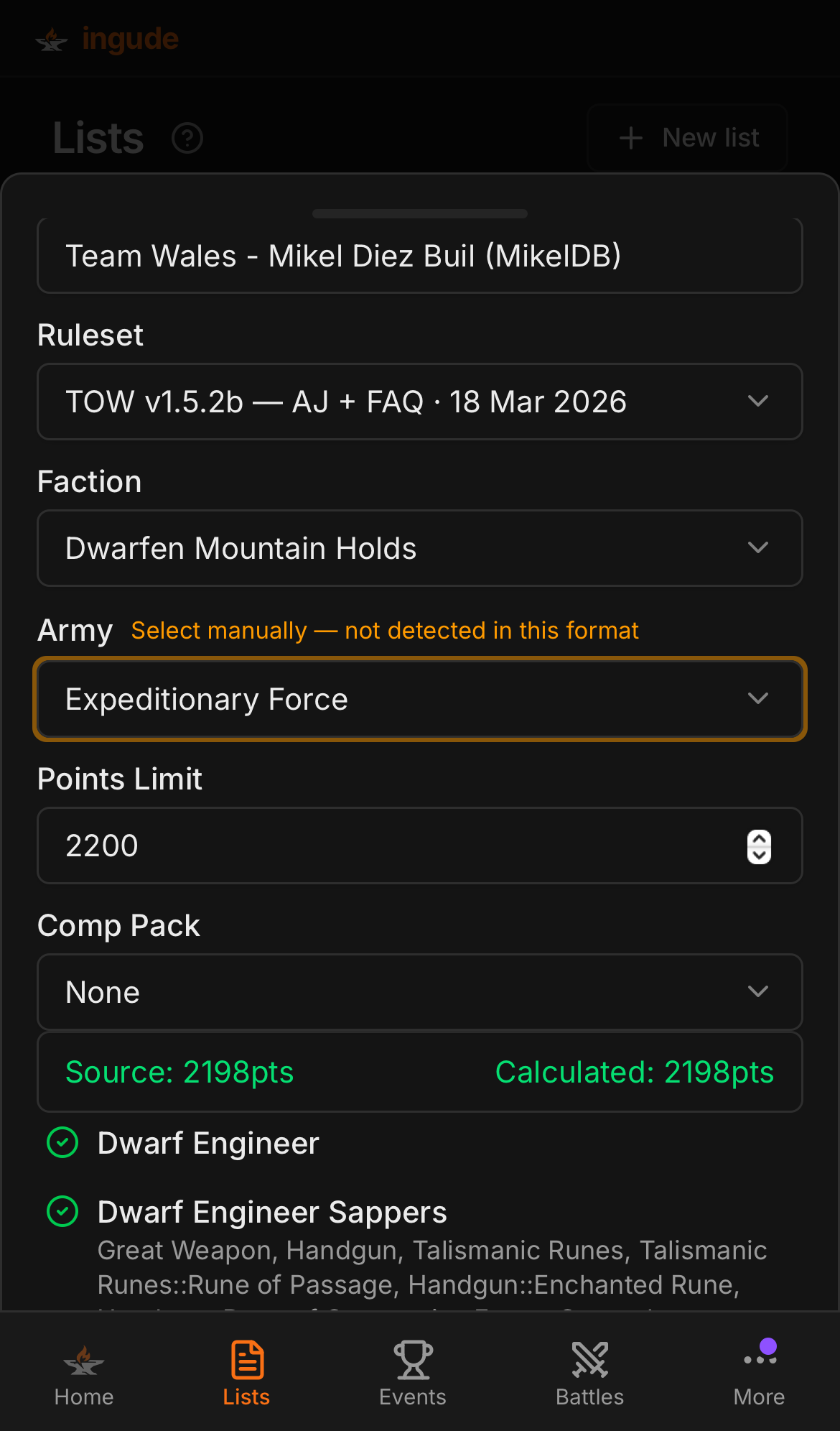
Ingude parses the list and moves to the preview step. Here you can:
- Confirm or correct the detected Faction, Army, Points limit, and List name.
- Choose a comp pack if the tournament uses one (this enables additional validation rules later).
The unit list shows every entry from the original list with a match status:
| Badge | Meaning |
|---|---|
| (none / clean) | Exact match - unit name and options found precisely in the data |
Amber delta Δ+12 | Fuzzy match - recognised but the recalculated cost differs from the declared one |
Red ? | Unmatched - not found; it will be imported as a best-effort placeholder |
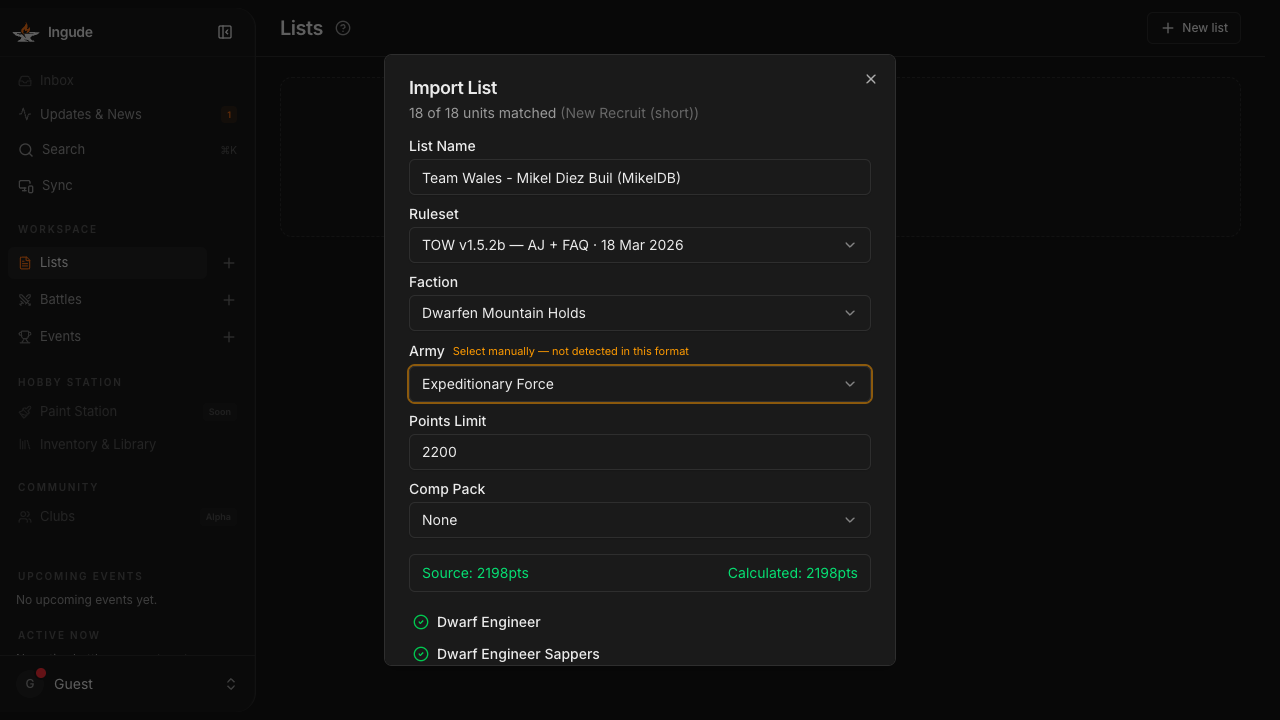
If you see unmatched rows, check that the correct Faction and Army are selected - picking the wrong faction is the most common cause.
Hit Import and Ingude saves the list and opens it in the editor.
Method 2 - New Recruit URL
If you have a New Recruit tournament link (e.g. from a Discord announcement or a BCP event page), you can import any player’s list directly without copying any text.
Step 1 - Open the URL import dialog
In the Lists section, tap Import from URL.
Step 2 - Paste the URL
Paste the New Recruit URL and hit Fetch. Ingude connects to New Recruit and retrieves the tournament participant data.
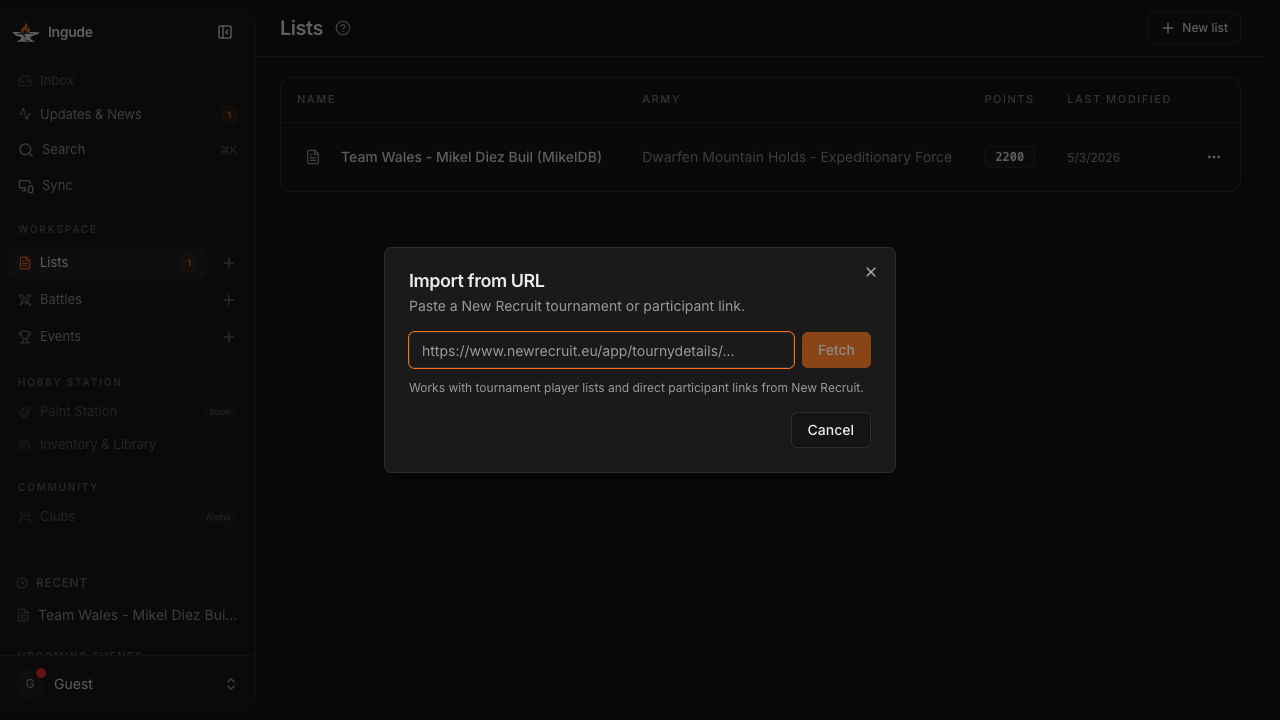
Two cases can happen:
- Direct participant link - Ingude fetches the list immediately and jumps to the preview.
- Tournament link - a searchable player list appears so you can pick whose list to import.
Step 3 - Pick a player (tournament links only)
Use the search box to filter by name and tap any player who has a list uploaded (players without a list are greyed out).
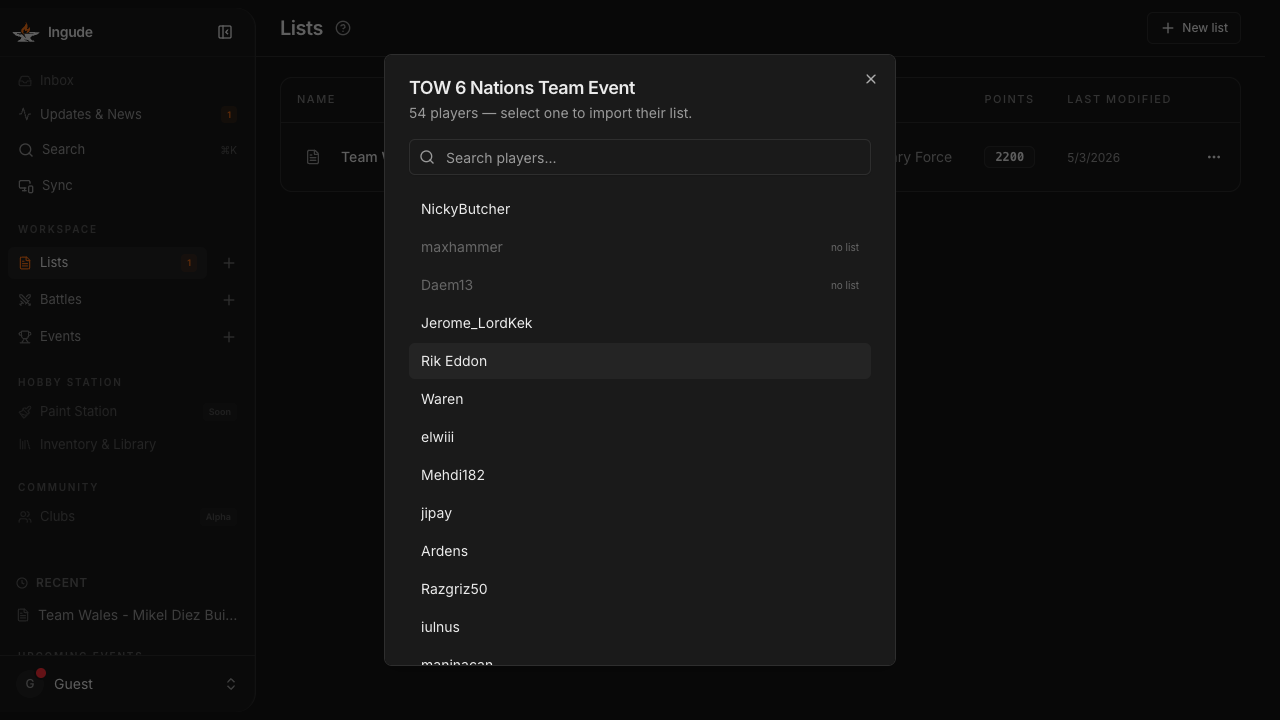
Step 4 - Preview and import
The same preview step from Method 1 appears. Confirm faction, army, and points, then hit Import.
Method 3 - Shared Link
Another Ingude user can share a list with you by generating a share link from the list editor. The link encodes the entire list (name, faction, army, points limit, all units) into the URL itself - no server involved.
On mobile
Opening a share link on your phone takes you straight to a confirmation card that shows the list summary.
Tap Import and the list is added to your local library immediately.
On desktop
The same page works in a browser too - useful if you want to add an opponent’s list to your tournament tracker on a laptop.
Understanding the Preview Step
All three methods converge on the same preview step before saving. It is worth understanding what Ingude does here.
How unit matching works
Ingude compares every unit name from your source list against the database for the selected faction and army. Matching happens in two passes:
- Exact - the name matches a known unit entry character-for-character.
- Fuzzy - the name is close enough (common abbreviations, spacing differences) that Ingude maps it to a unit, but it flags the cost difference as a delta badge.
Units that cannot be matched at all are imported as stubs. You can correct them in the list editor afterwards.
Points delta
The delta badge (Δ+12, Δ-30, etc.) appears when Ingude’s calculated cost for a unit differs from the cost declared in the source text. This usually means:
- The source was created on an older ruleset version.
- An option was not recognised and was silently dropped.
- You have selected the wrong army sub-list.
Fixing the faction/army selectors in the preview often resolves most deltas at once.
The Validation Engine
Once a list is imported and saved, Ingude continuously validates it in the background according to The Old World core rules and - if you assigned a comp pack - the pack’s additional constraints.
Open the Validation panel from the list editor to see the results.
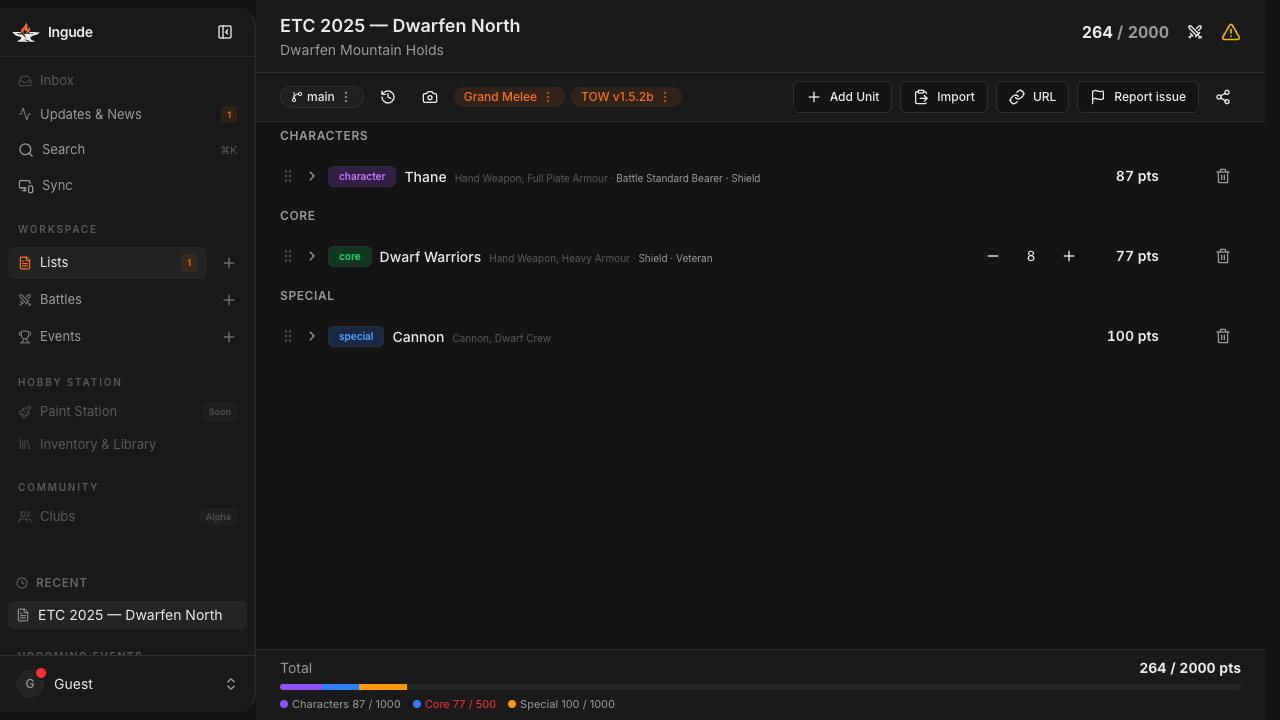
Severity levels
| Icon | Colour | Meaning |
|---|---|---|
| ● Error | Red | The list is illegal under the applicable rules. This must be fixed before the list can be used in a competitive game. |
| ▲ Warning | Amber | Something is unusual or borderline - worth reviewing, but not strictly illegal. |
| ℹ Info | Blue | Informational note, e.g. a reminder about a special rule interaction. |
When a rule comes from a comp pack rather than the core ruleset, Ingude shows the source name below the message so you know exactly which document to consult.
Organizing Your Library
After import your list appears in the Lists library. A few things to know:
Favouriting
Tap the ★ icon on any list card to pin it to the top of the library. Useful for your tournament staple lists.
Version history
Every import creates a snapshot - a read-only version that records the list exactly as it was at import time. If you later edit the list, the original import is preserved as a version you can always look back at. You can see all snapshots in the Version History panel inside the list editor.
This means it is safe to import and then immediately start tweaking. You will not lose the original.
Mobile Flows
All import methods work on mobile. A few differences to be aware of:
- The import dialogs open as bottom sheets that slide up from the bottom of the screen instead of centred modals.
- The drag-and-drop zone becomes a tap to pick file button (iOS/Android file pickers).
- The most common mobile flow is pasting from the clipboard: copy your NR list in the New Recruit app, switch to Ingude, open Import, and paste.