Battle Mode
Battle Mode is the in-game companion screen. You open it when armies are deployed and you are ready to play. It tracks casualties, Victory Points, Battle Points, and provides quick-access reference tables so you never need to leave the table to look something up.
Starting a Battle
Opening the Battles section
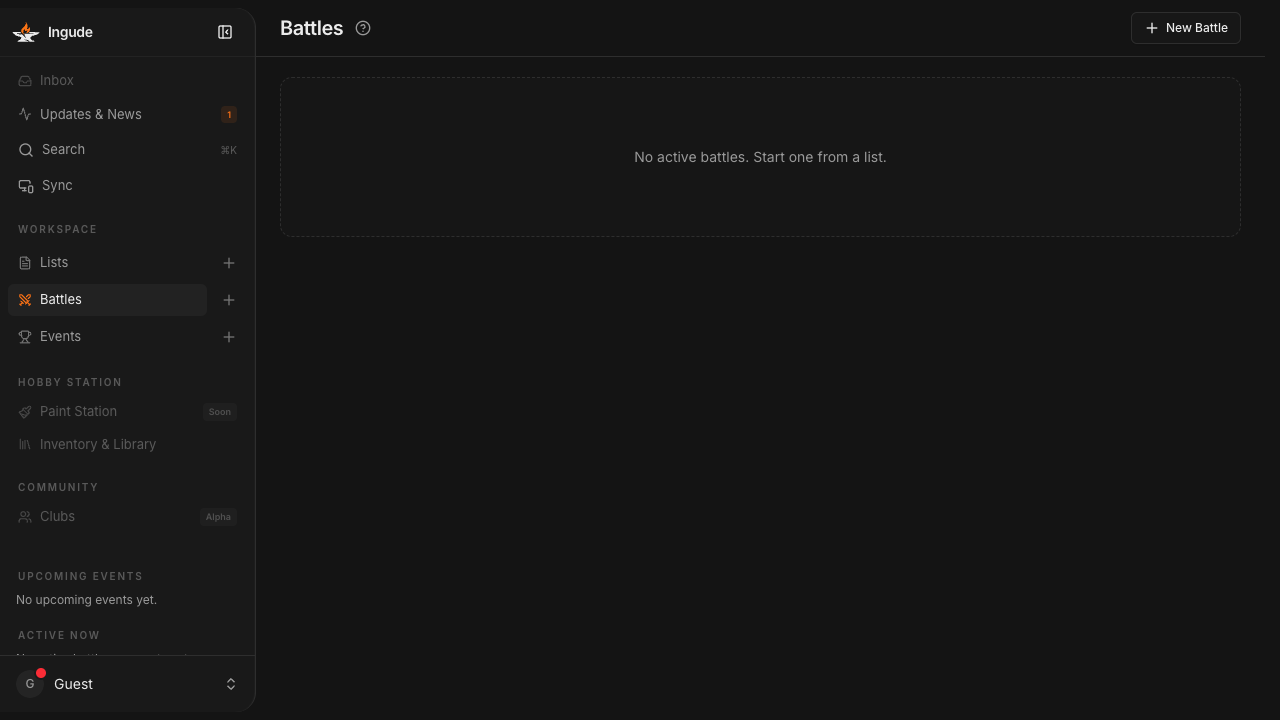
Go to the Battles section in the sidebar. You will see all your past and active battles listed here with their status badge - Setup, Turn 1–6, or Completed.
Tap + (or the New Battle link) to create a new battle.
On mobile the Battles section is in the bottom navigation bar.
The Setup Wizard
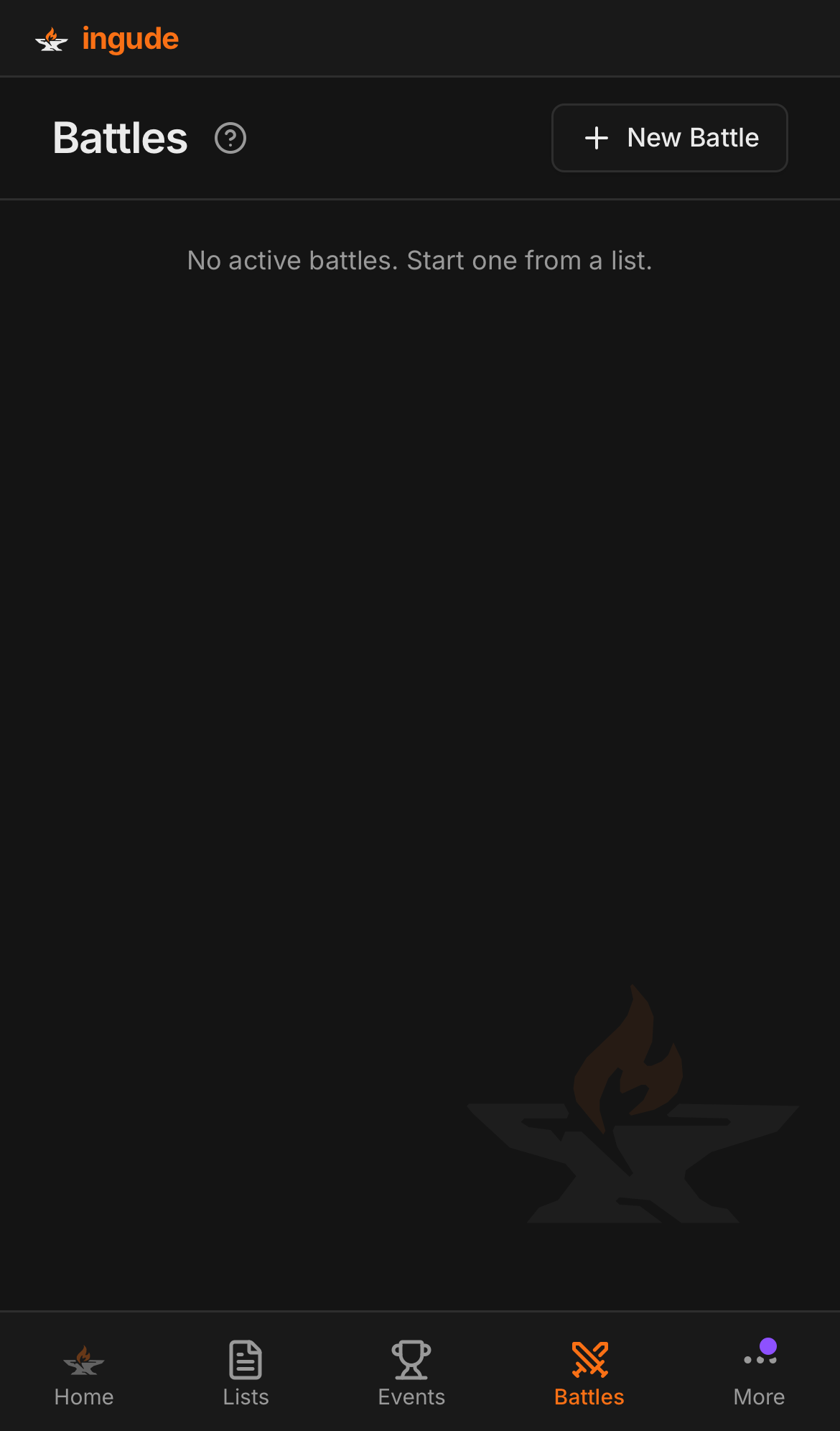
Every new battle starts with a short wizard. You can go back and forward through the steps at any time before starting.
Step 1 - Your List
If you have lists saved in Ingude, choose one from the dropdown. This links your army units to the battle so you can track casualties with a single tap.
You can also import a list on the spot (Paste, URL, or QR) if you have not imported it yet.
If you prefer to play without unit tracking, tap Skip - you can still track VP totals and use the reference apps.
Step 2 - Opponent
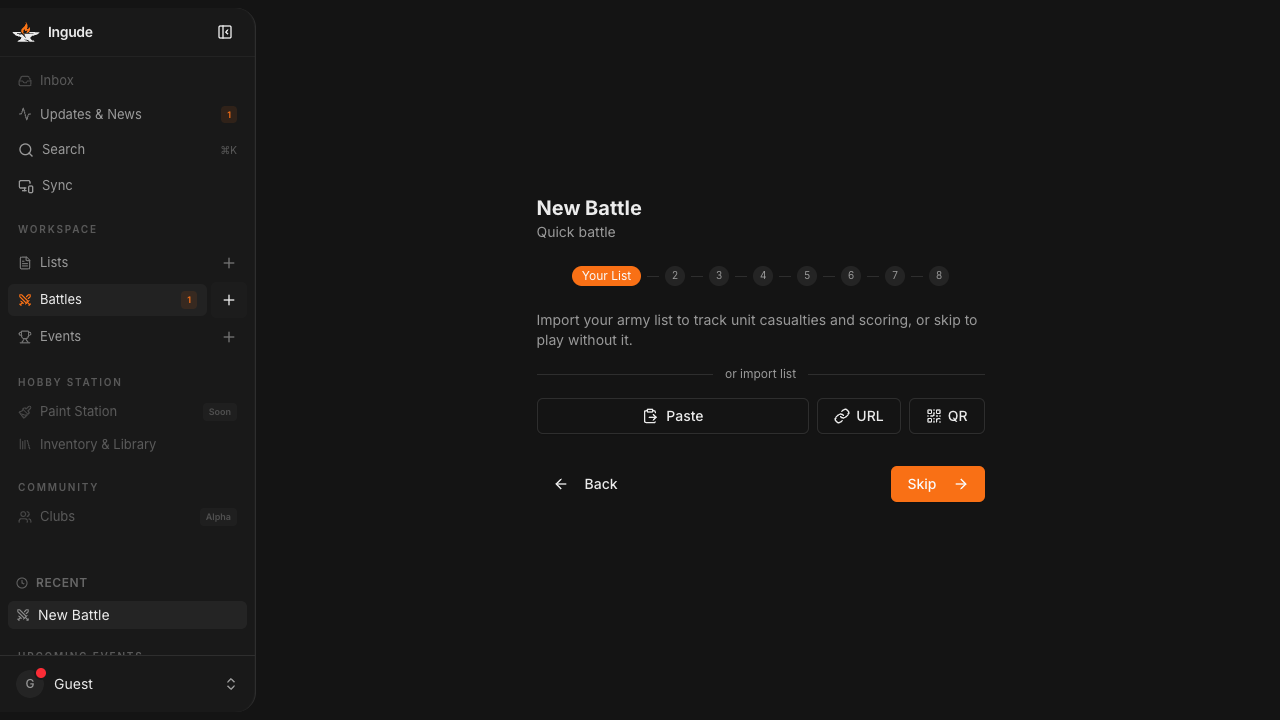
Enter your opponent’s name and select their faction. Optionally, choose one of your saved lists as the opponent list (useful when practicing against a known list), or import one the same ways as Step 1.
Having the opponent list imported allows Ingude to show their unit statuses and automatically calculate the VP they score for surviving units.
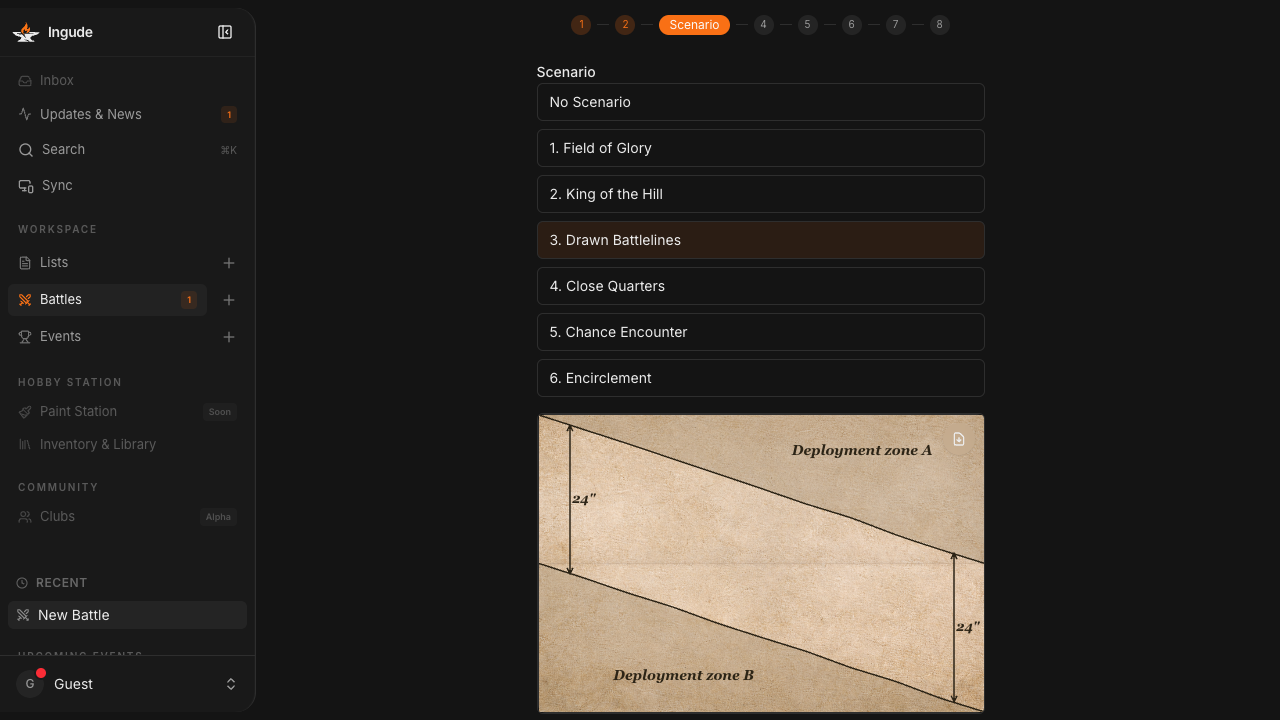
Step 3 - Scenario
Select the matched-play scenario you rolled. Ingude shows a deployment zone diagram for your reference as soon as you pick one.
Choose No Scenario if you are playing an open game without a fixed deployment map.
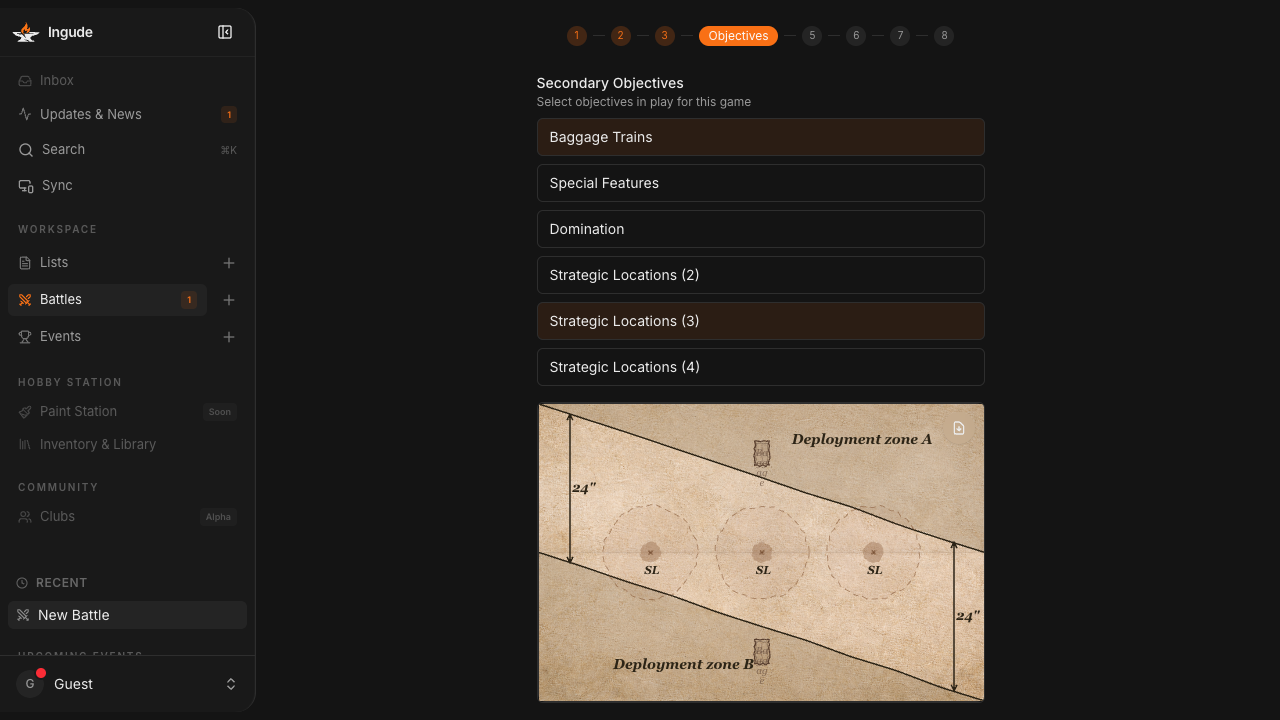
Step 4 - Secondary Objectives
Pick any secondary objectives in play for this match (e.g. Domination, Baggage Trains, Strategic Locations). Only one Strategic Locations variant can be active at a time - selecting a different one removes the previous one automatically.
If no secondary objectives are used, leave all unchecked and proceed.
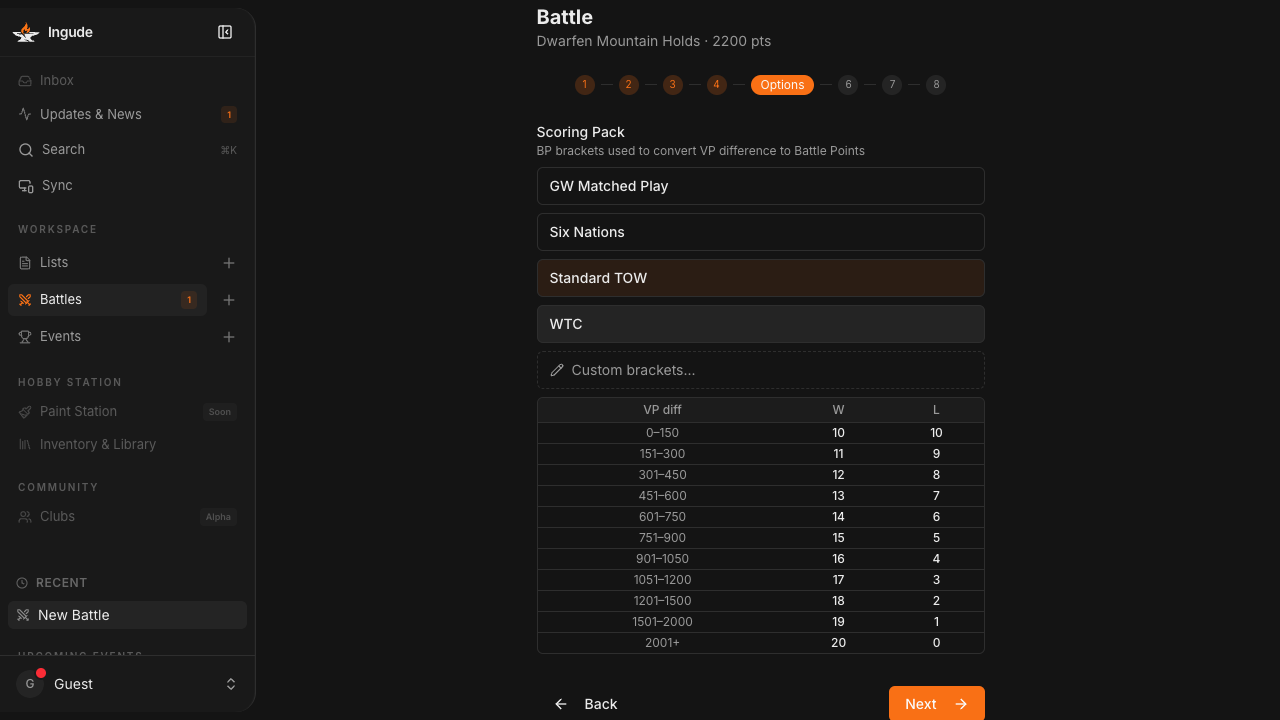
Step 5 - Scoring Pack
Choose the scoring method for this game. Ingude ships with several packs:
| Pack | Method | Notes |
|---|---|---|
| GW Matched Play | BP brackets | Standard out-of-the-box rules |
| Standard TOW | BP brackets | Common competitive default |
| Six Nations | BP brackets | Used in the Six Nations team event |
| WTC | TP table | Tournament Points based on VP diff |
You can also set up Custom Brackets via the pencil button to define your own VP diff → BP conversion table.
The bracket table preview updates live as you switch packs.
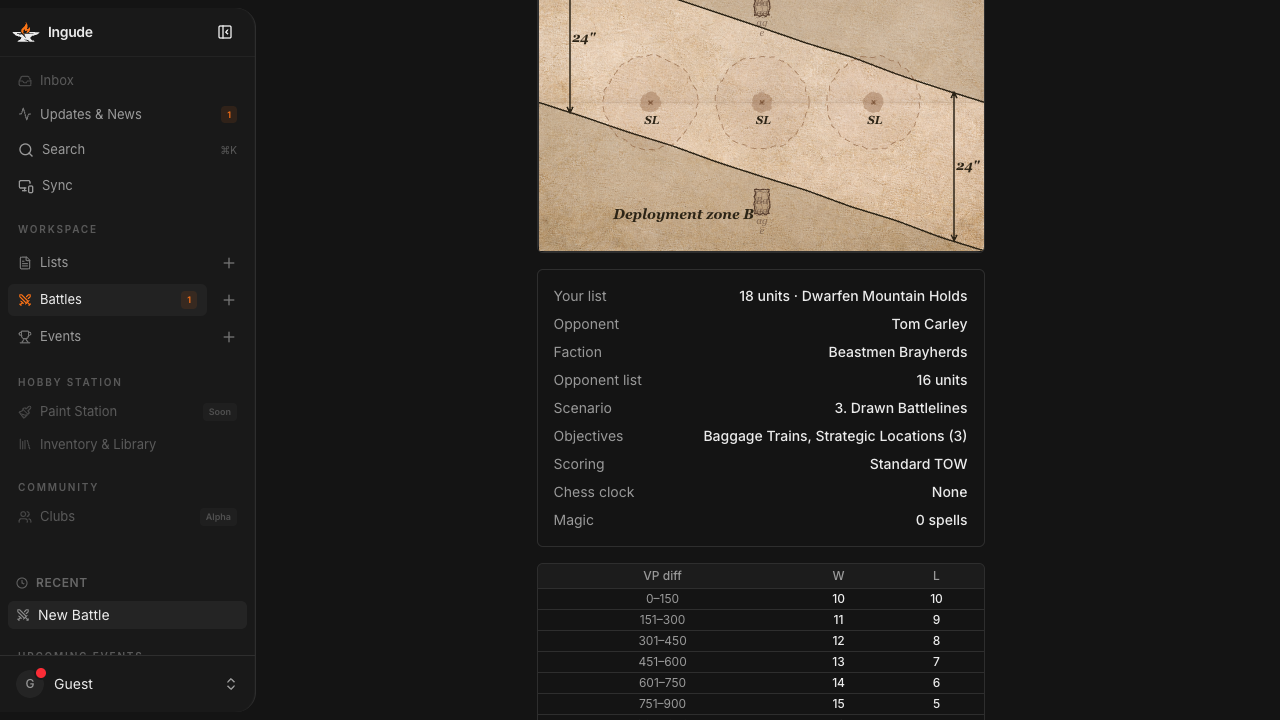
Step 6 - Confirm
Review the full match summary before starting. The deployment diagram, opponent details, scenario, objectives, and scoring pack are all shown here.
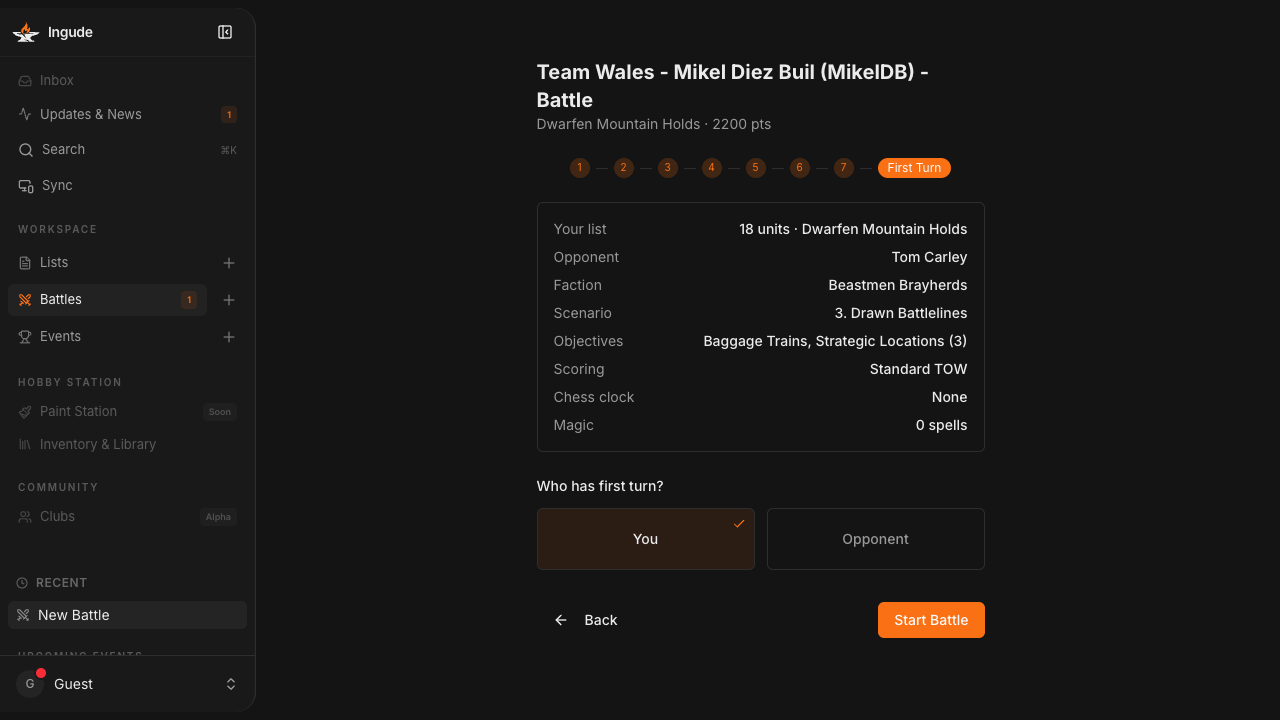
Step 7 - First Turn
Record who has the first turn. Tap You or Opponent. This information appears in the Overview sheet during the game and is saved with the battle record.
Tap Start Battle to begin.
The Battle Dashboard
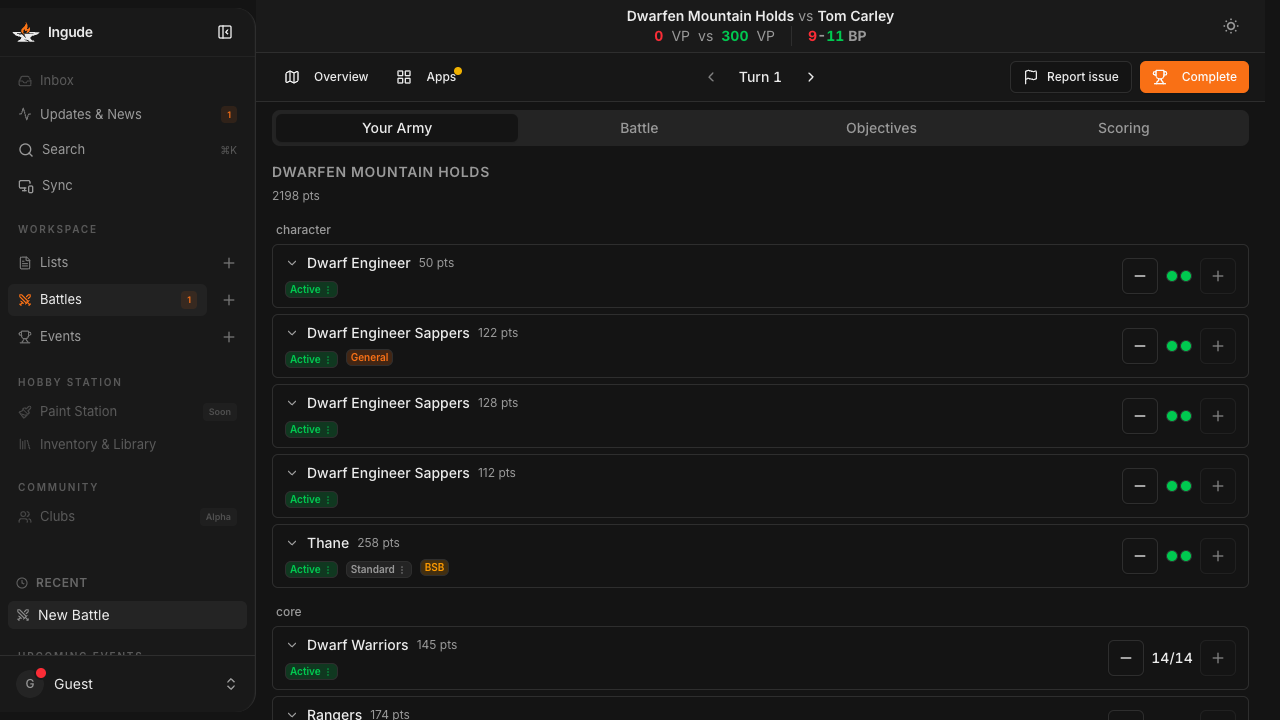
Once the battle is in progress you land on the Battle Dashboard.
Score bar
The top bar always shows the live score: player name vs opponent name, VP totals for both sides, and the current Battle Points (or Tournament Points) result.
Turn controls
Use the ‹ and › buttons to advance or roll back the game turn. Scoring is live and VP totals update instantly as you mark units.
Desktop toolbar
On a wide screen the toolbar provides:
- Overview - opens the battle summary sheet (scenario diagram, opponent info, scoring table).
- Apps - opens the reference app drawer.
- Turn controls - centred in the toolbar.
- Complete - ends the match and records the result.
Tracking Casualties
Your Army tab
The Your Army tab lists every unit in your imported list, grouped by role (character, core, special, rare). Each row shows:
- Unit name and points cost
- Current status badge (Active, Half Strength, Destroyed, Fleeing, Fled)
- Wound/model counter with – and + buttons
For multi-wound characters (e.g. Lords, Heroes) the counter shows remaining wounds. For ranked units it shows remaining models.
Tapping + or – updates the count and recalculates VP automatically. The score bar updates in real time.
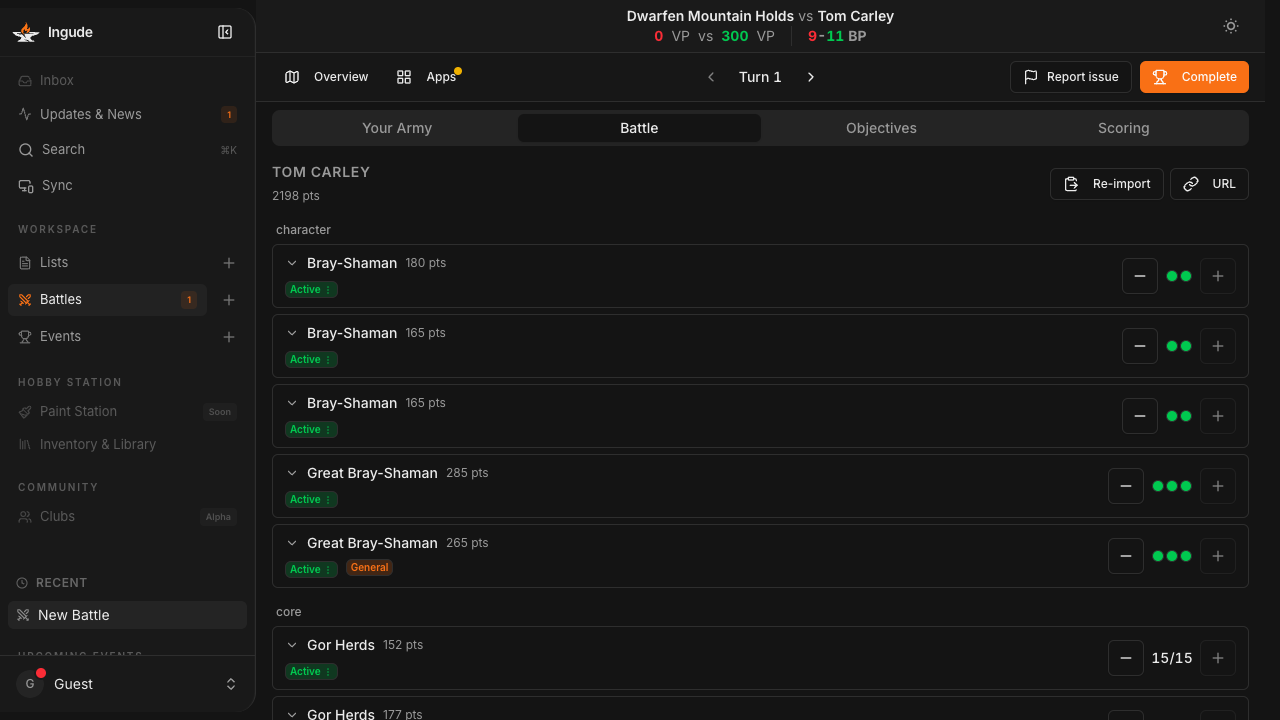
Battle tab (opponent)
The Battle tab mirrors the layout but shows your opponent’s units. If you imported their list during setup, their units appear here and you can track their casualties the same way.
If you did not import a list during setup, you can still import one mid-battle using Import List or From URL.
Scoring tab
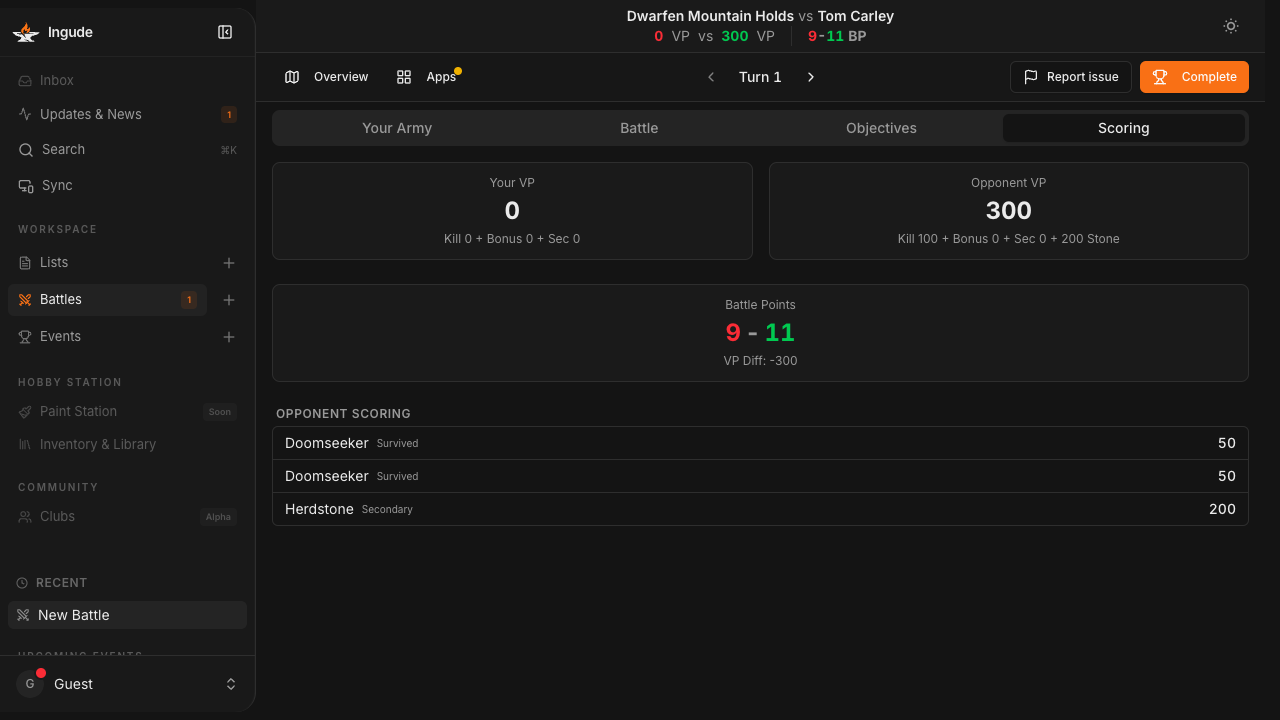
The Scoring tab gives a live breakdown at any moment:
- Your VP vs Opponent VP with a kill/bonus/secondary split
- Current Battle Points or Tournament Points result
- A per-unit breakdown showing which units have scored and why (Destroyed, Half Strength, Survived, Secondary Objective)
Overview Sheet
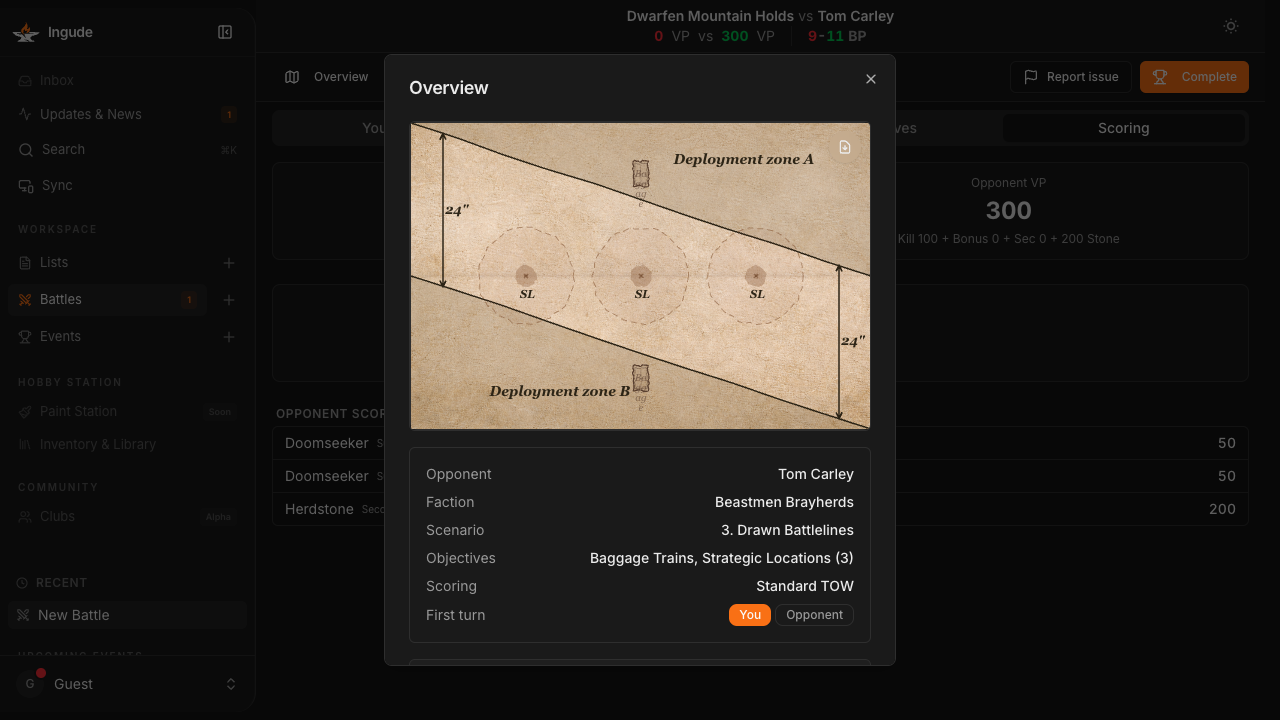
Press Overview (desktop toolbar or mobile nav) to open a panel with:
- The scenario deployment diagram
- Opponent name, faction, scenario, scoring pack, and objectives at a glance
- A First Turn toggle you can correct if you recorded it wrong
- The full scoring pack bracket table
Battle Apps
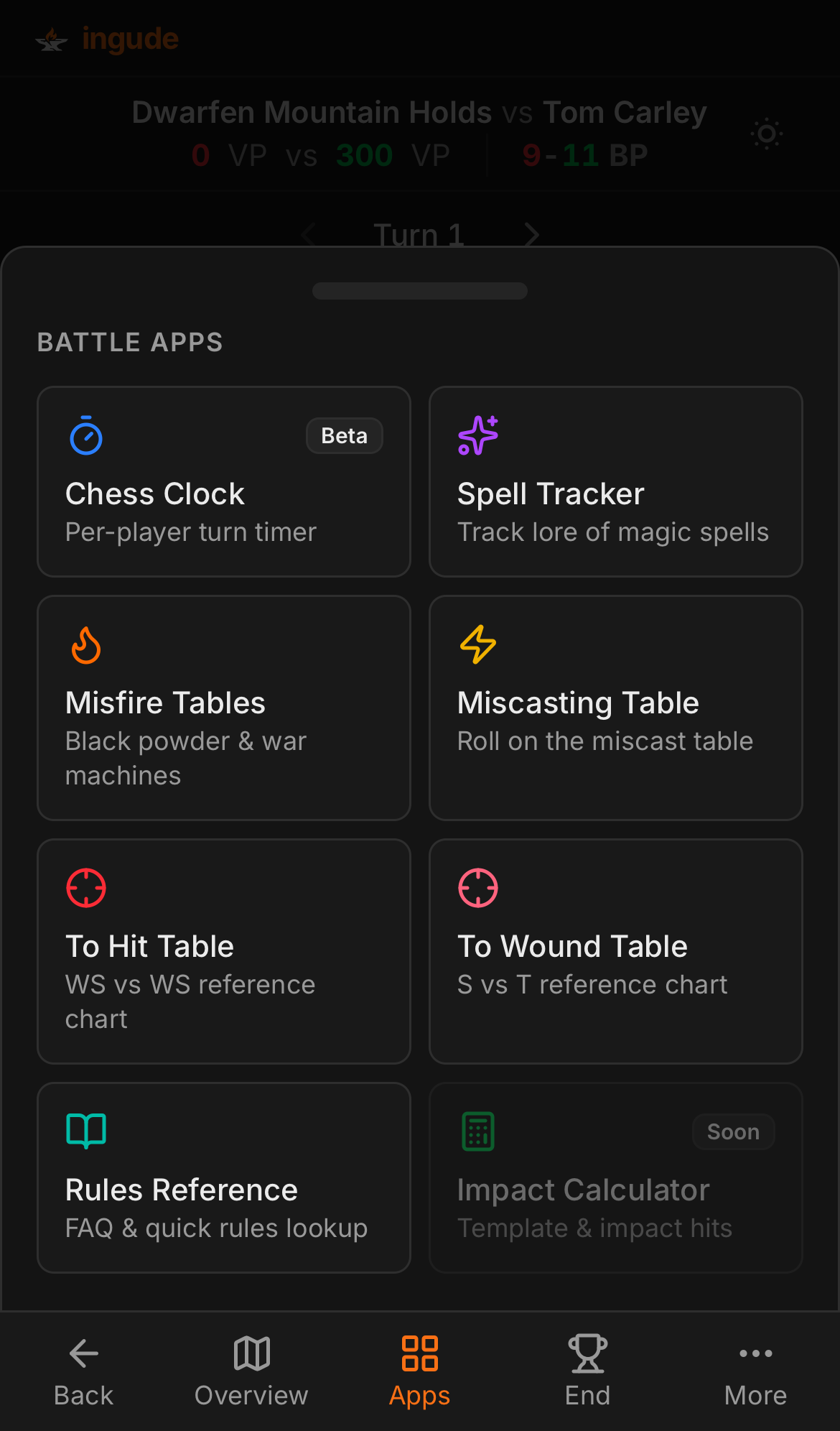
Press Apps (desktop toolbar or mobile nav) to open the app drawer. These are quick-reference tools you would otherwise need a rulebook or phone calculator for.
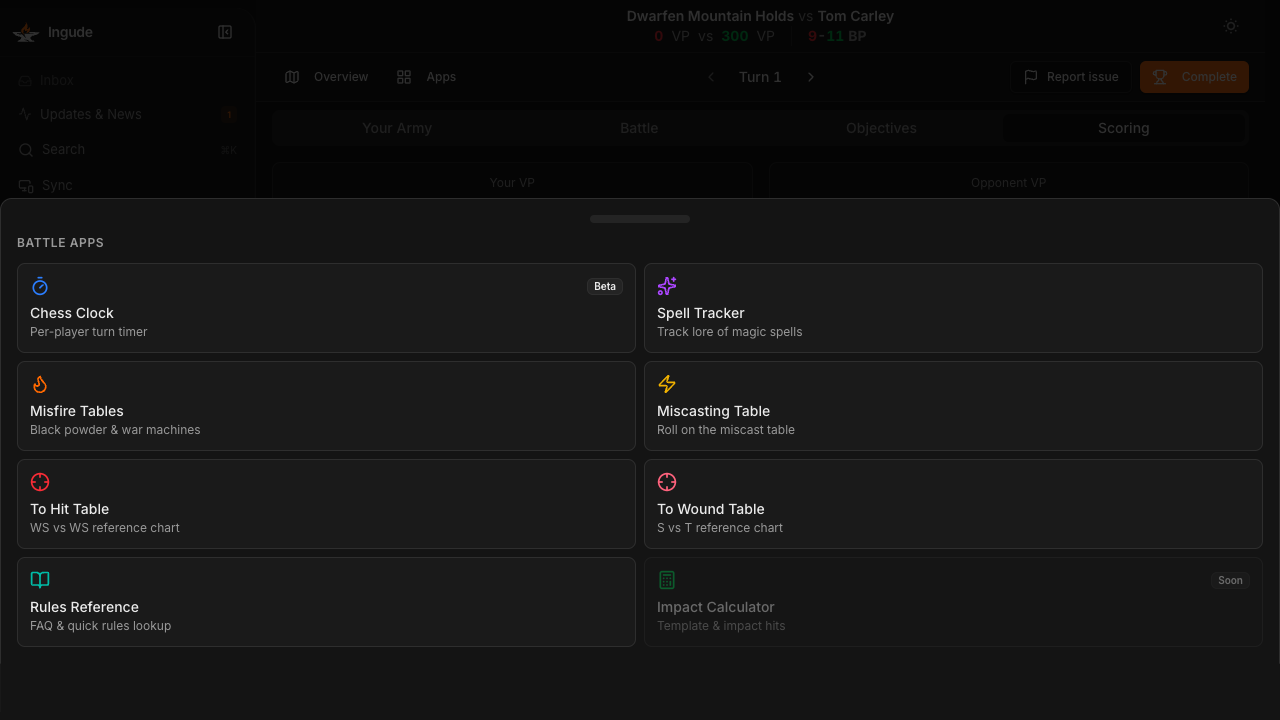
Currently available apps:
| App | What it does |
|---|---|
| Misfire Tables | Tap to look up the misfire result for black-powder weapons and war machines |
| Miscasting Table | Roll on the miscast table - tap a result to read the effect |
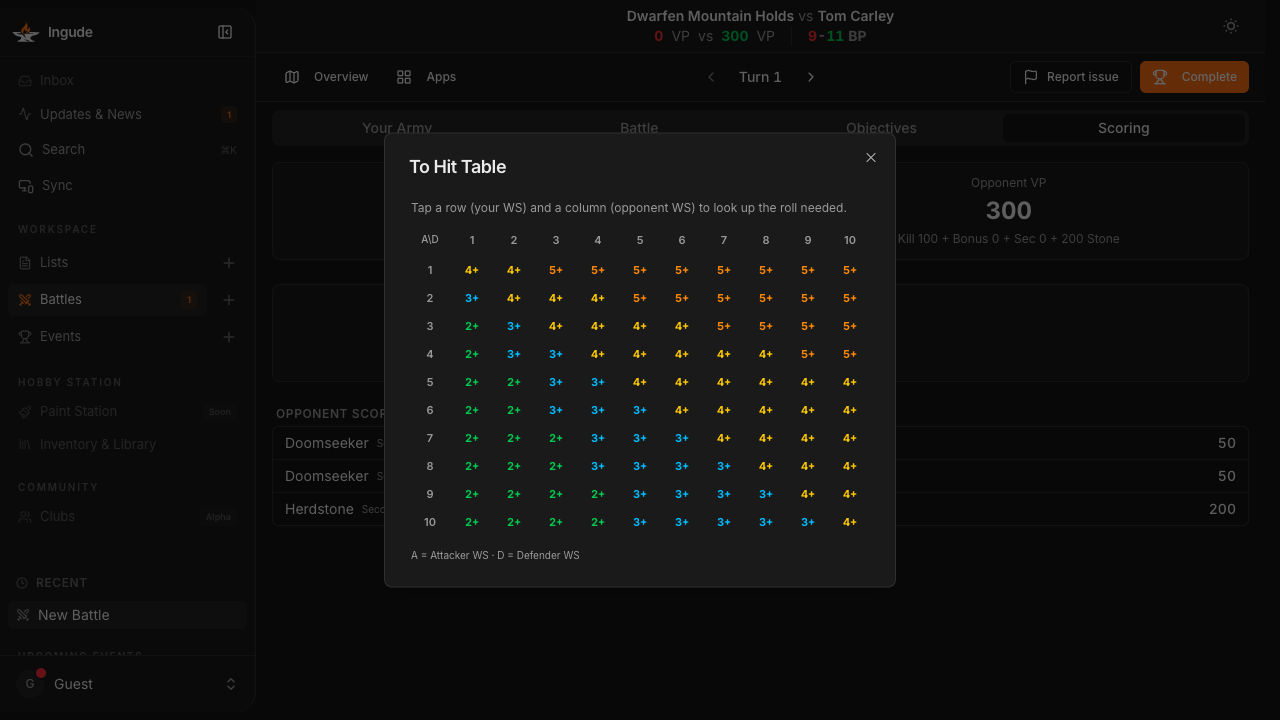
| To Hit Table | WS vs WS reference chart - tap a row (your WS) and column (opponent WS) to see the roll needed |
| To Wound Table | S vs T reference chart - same interaction as To Hit |
Apps labelled Soon are in development.
Mobile Flow
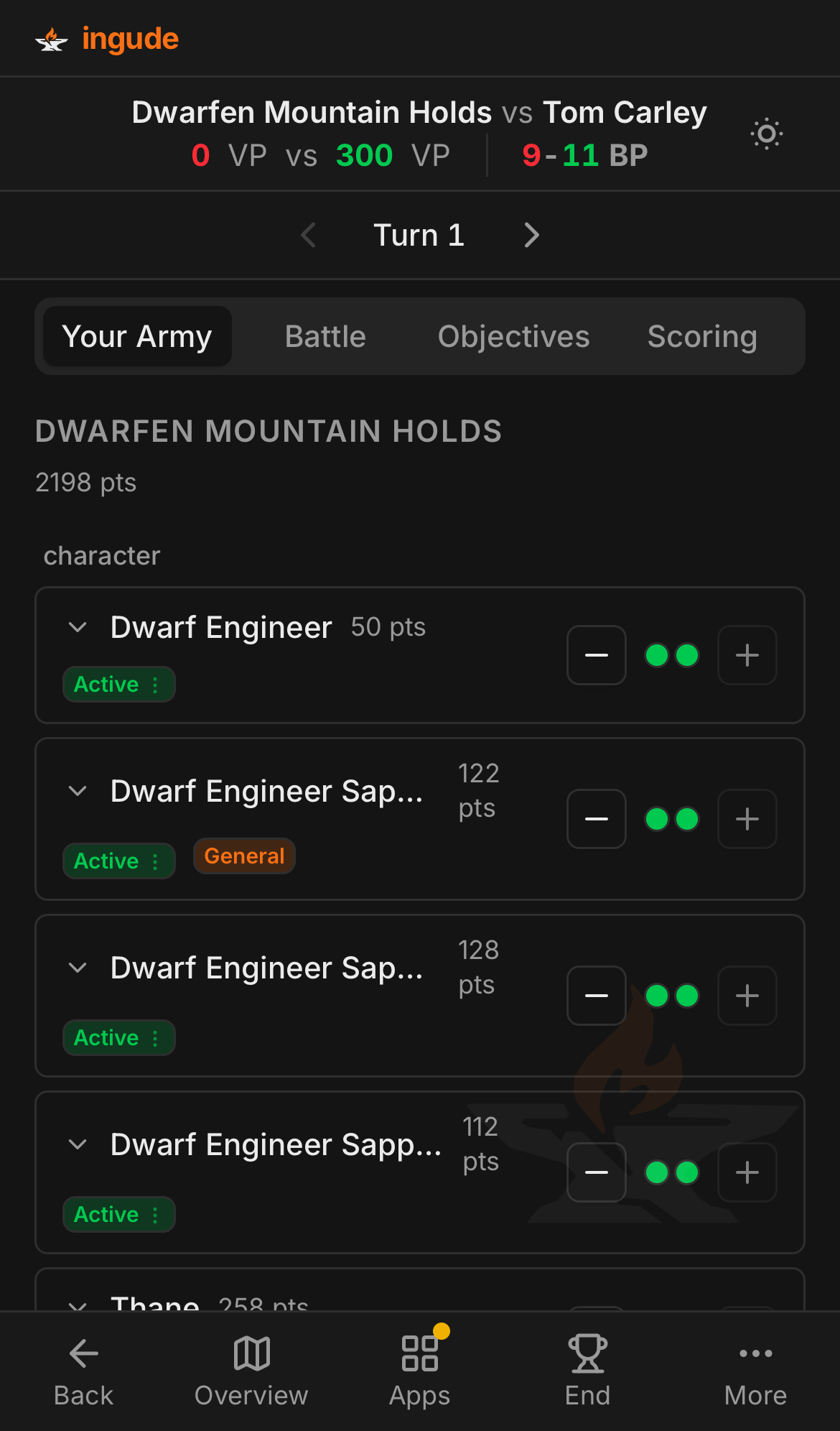
On phones the Battle Dashboard stacks into a single-column layout with a bottom navigation bar:
- Back - return to the battles list
- Overview - open the overview sheet
- Apps - open the reference app drawer
- End - complete the battle
- More - additional options
The tabs (Your Army, Battle, Scoring) are swipeable - you can swipe left and right between panels.
The Apps drawer slides up from the bottom on mobile, showing the same grid of reference apps.
Completing a Battle
When the game ends, press Complete (desktop) or End (mobile). Ingude calculates the final outcome - Win, Loss, or Draw - based on the BP difference and saves it to the battle record.
The result banner shows:
- Victory / Defeat / Draw with colour coding
- Final VP for each side
- Final BP (or TP) score
If you made a mistake, tap Reopen to return to the in-progress state and adjust unit statuses before saving again.
Keyboard Shortcuts (Desktop)
On a keyboard-equipped device you can update units without touching the mouse:
| Action | Shortcut |
|---|---|
| Switch to Your Army tab | 1 |
| Switch to Battle tab | 2 |
| Switch to Scoring tab | 3 |
| Advance turn | → |
| Go back one turn | ← |